
A new dashboard builder for Home Assistant showed up in a recent YouTube walkthrough (embedded in this post). The video title calls it Panalume. The creator describes it as formerly called Glasshouse, inspired by HA Fusion, and still in beta. The pitch is simple: place any card anywhere, resize it, style it, and run the result on a wall tablet, phone or desktop without writing YAML.
What the video shows
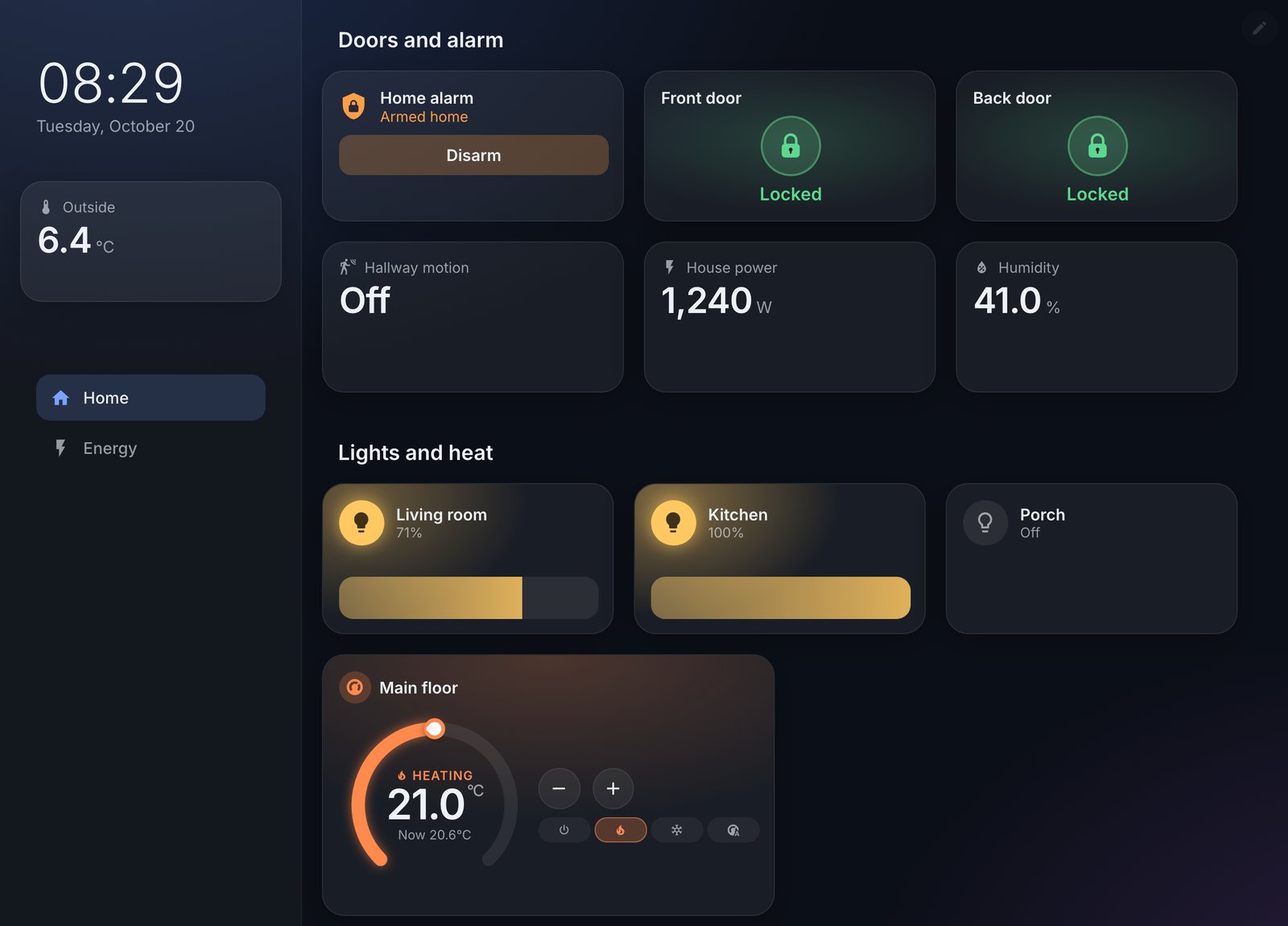
It installs as an app from Home Assistant’s app store, not through HACS. You add the project’s repository from the three-dot menu in the Apps screen, install it, then enable start on boot and show in sidebar. Press E or click edit and you can drag in cards for controls, info, media, energy and layout. The creator builds a small security section with an alarm panel, two door locks and a motion sensor, and duplicates a card instead of rebuilding it.
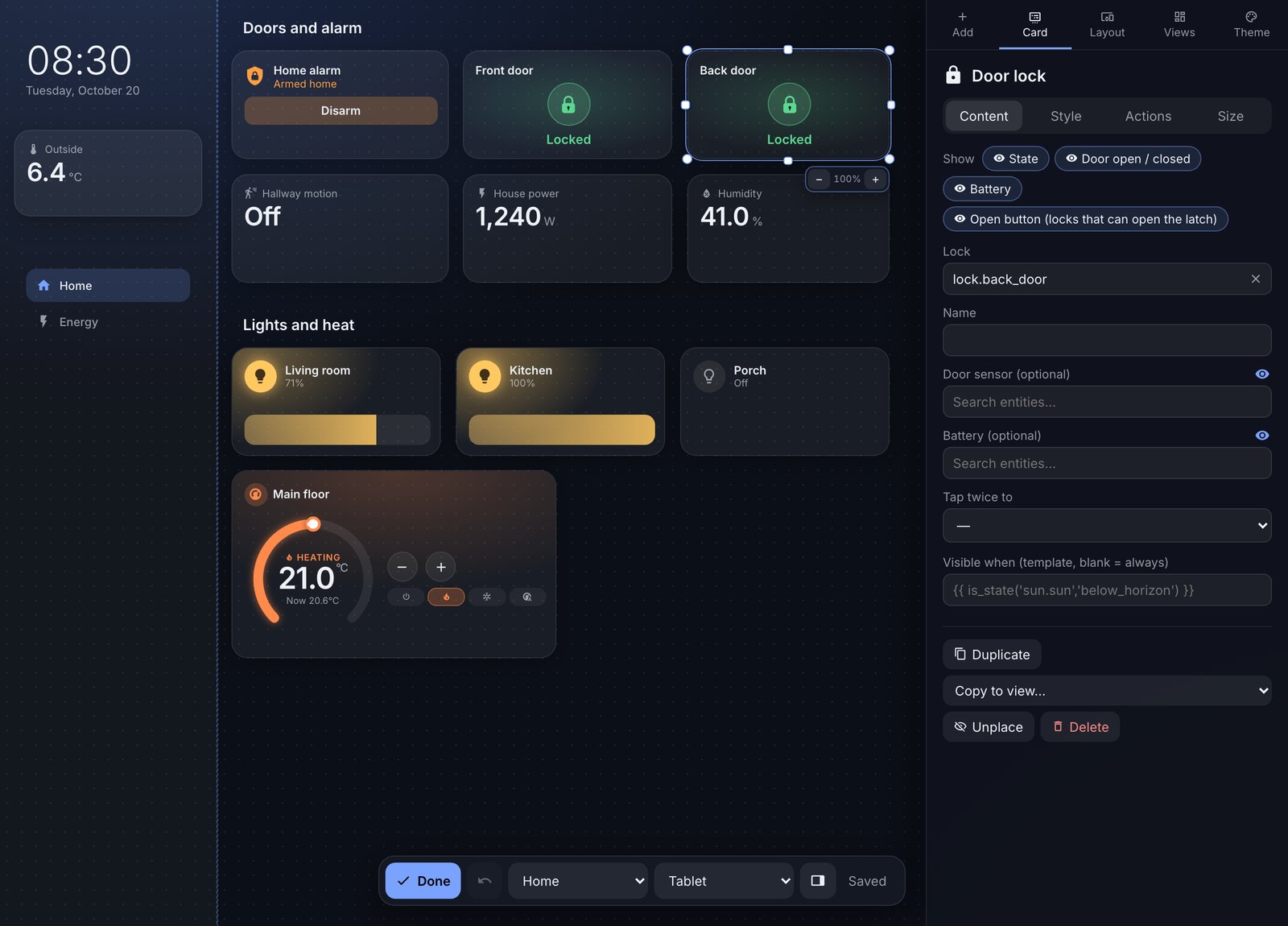
Other features covered:
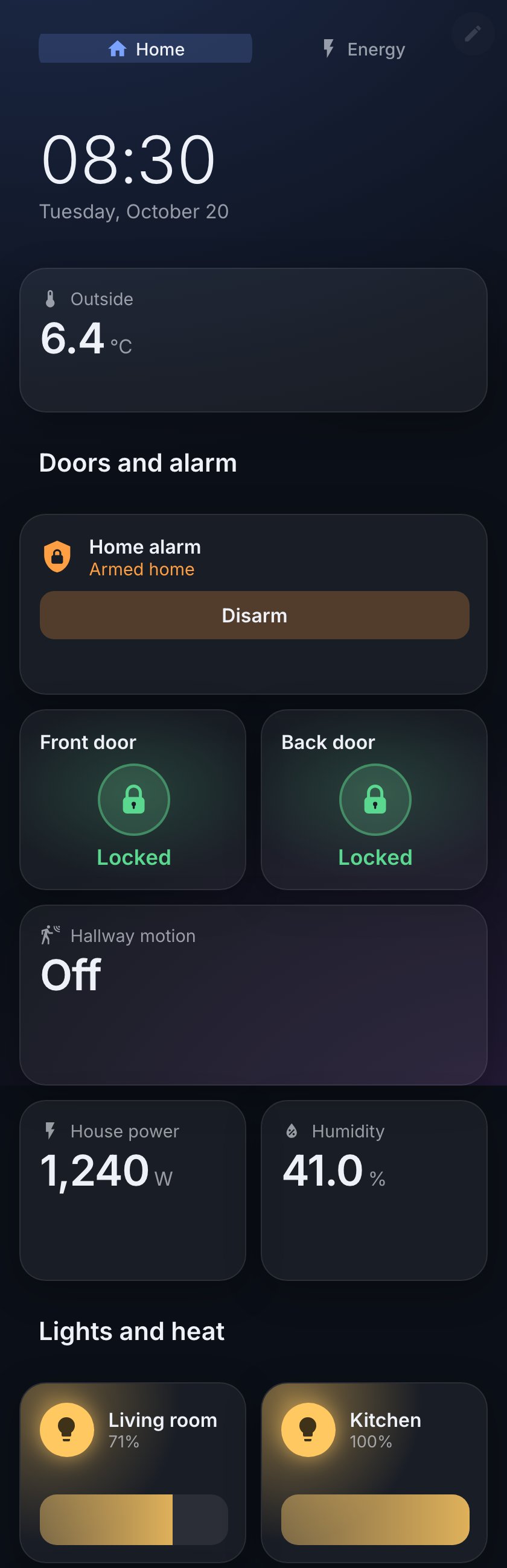
- Separate tablet, desktop and phone layouts. Phones get an automatic single-column version, but the creator found it didn’t map neatly from the tablet layout and advises designing for one device and locking to it.
- An optional sidebar that holds cards which stay visible across views.
- Theme controls for colours, borders, shadows, radius and padding, plus a reset, and custom CSS if you want more.
- A kiosk mode that hides the header, and live updates so saved changes reach tablets within about a second, according to the project’s own description.
- Templates are available everywhere, but the demo deliberately avoids them.
The caveats the creator found
It’s a first-look demo, not a long-term test, and the creator is upfront about rough edges. When you resize an alarm panel, the text scales but the buttons don’t. A sensor card couldn’t be shrunk much before the state word was cut off. The creator also couldn’t find a way to hide or restyle a card’s state without using a template, and wondered if that is a beta limitation. A few theme options (active colour, accent, card blur) had no visible effect in the demo. Cards snap to a grid, and snapping to each other’s edges looks odd with rounded corners.
Worth knowing: AI involvement
At the end of the video, the creator points out that Claude is listed as a contributor on the project’s GitHub page. They say they aren’t bothered, because the tool seems to work well, but they raise the obvious risk: AI makes it easier to build something and then abandon it. Their advice is sensible for any community add-on. If a dashboard is critical to how your household runs, don’t depend entirely on a young project, and have a fallback.
What this means for an installed system
- Treat it as a trial. It’s beta, so try it on a spare tablet or a second dashboard first. Leave your working dashboard alone until you’ve lived with it.
- Know what you’re adding. It is a third-party repository and an app running inside Home Assistant. Read the project’s page, and take a backup before installing any new app.
- Keep your existing dashboards. Because it appears as its own sidebar entry, you can run it alongside what you have and compare.
- Wall tablets are the sweet spot. The single fixed layout with no scrolling and the kiosk mode suit a hallway or kitchen panel. For phones, expect to do some tidying by hand.
- Wait if you need fine control. If you rely on precise state display or hiding, the gaps shown in the video may matter, and templates may be the only workaround for now.
We ran version 0.30.1 on our test Home Assistant with sample devices to take the screenshots above. We ran it as a plain Docker container, not through the app store install the video shows, and only built a sample dashboard; the rest of this post is from the video. If you’ve been putting off a dashboard rebuild because hand-editing cards is tedious, this is a low-risk one to watch. Go see the full walkthrough from the creator and decide for yourself.