

A community member posted a small Home Assistant blueprint on the Blueprints Exchange that solves an annoying problem: lights switching off on a motion-clear event while you are still in the room. Standing at the counter or washing dishes is the classic case. The blueprint, called Motion Sensor Enable or Disable, lets you pause the motion sensor by hand and have it resume on its own.
What it does
The author describes the idea simply: turning on the smart light switch disables the motion sensor, and turning off the switch enables it again. That keeps the lights from dropping out while you are busy in the kitchen. The author says they tested it with Philips Hue motion sensors and switches.
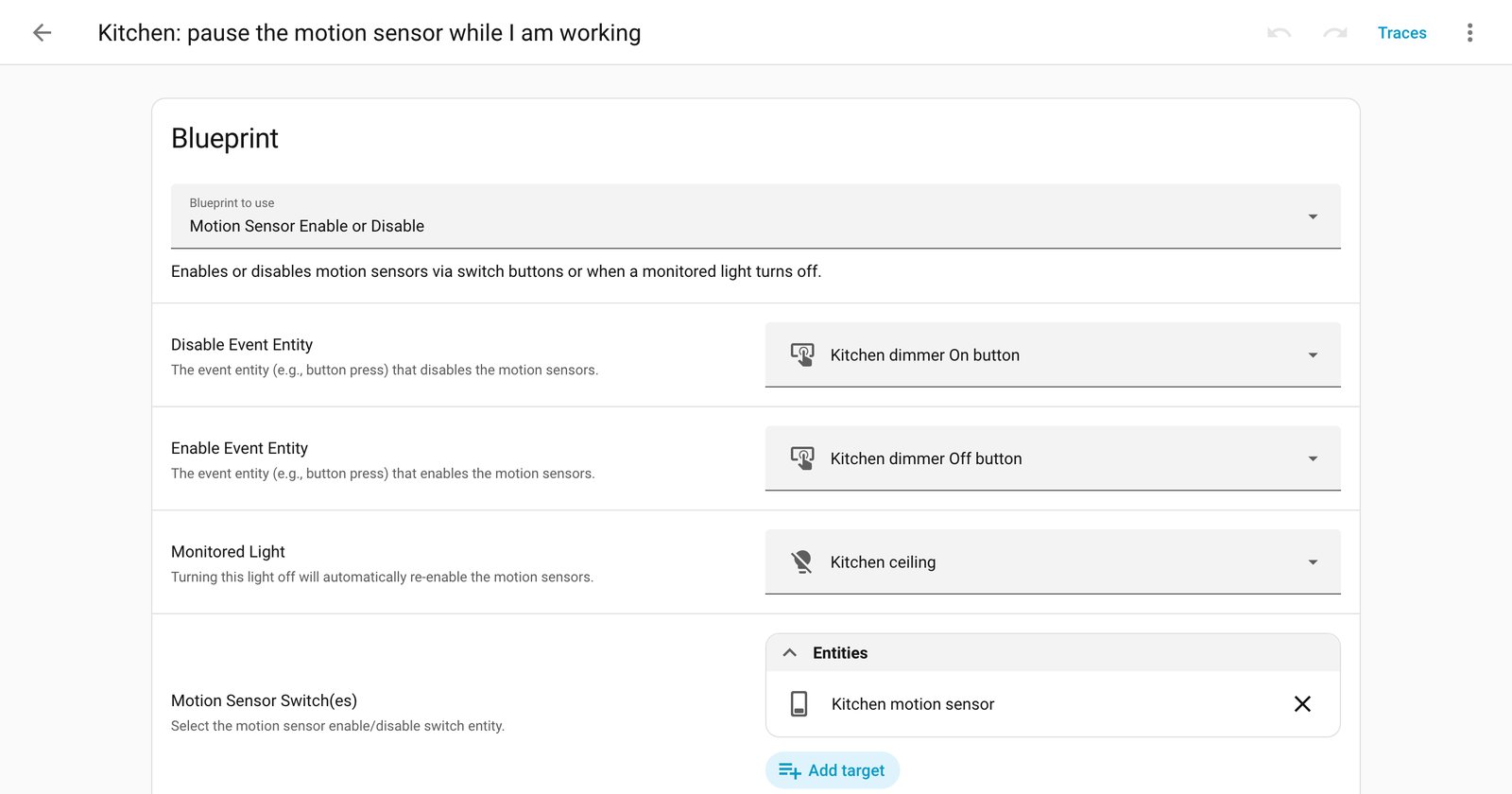
There are four inputs, all required:
- Disable Event Entity: an event entity, such as a button press, that disables the motion sensors.
- Enable Event Entity: an event entity that enables them again.
- Monitored Light: a light entity. When it changes to off, even from a timer, the sensors are re-enabled.
- Motion Sensor Switch(es): the switch entity or group that enables and disables the sensor.
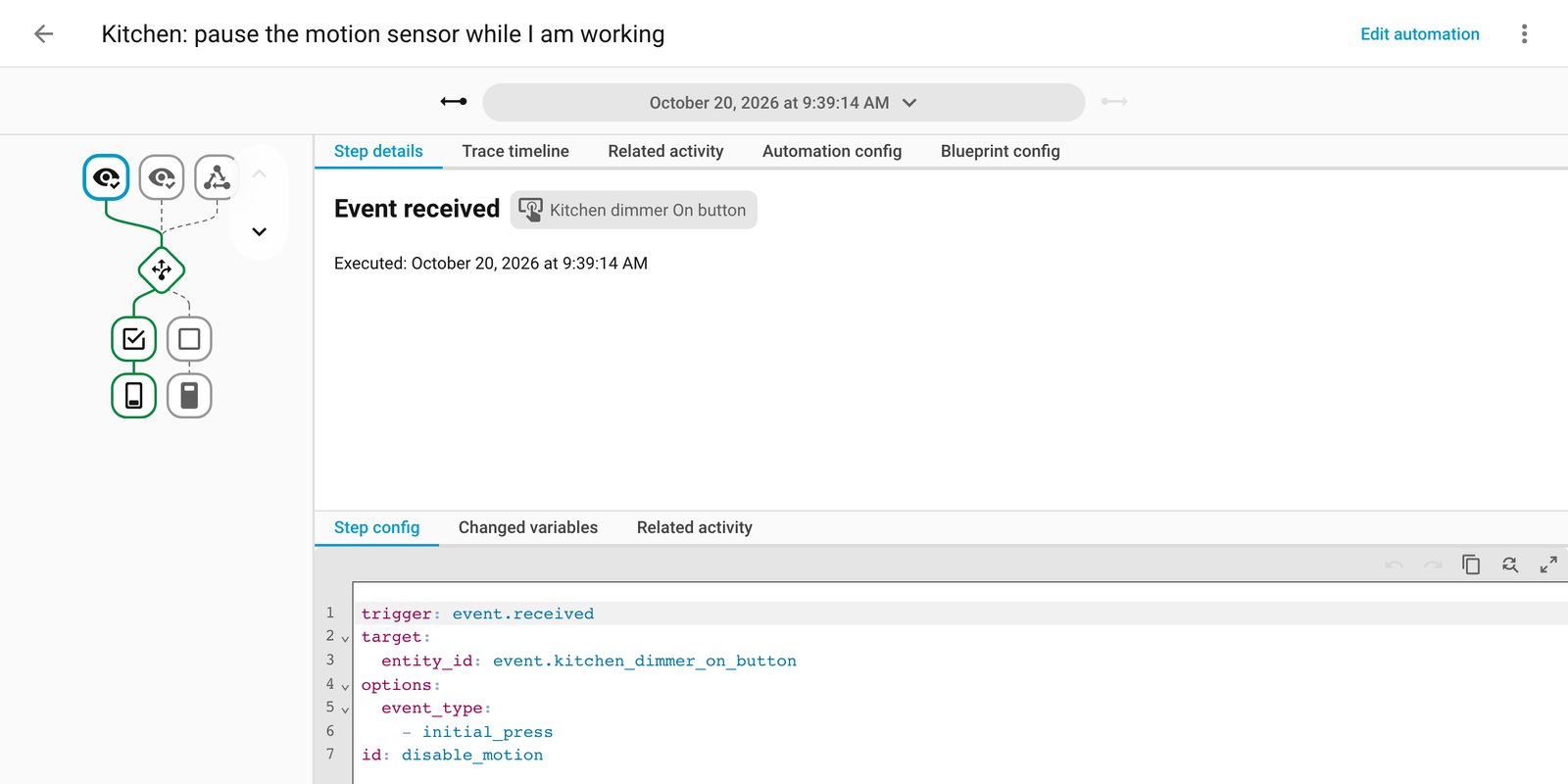
Reading the published YAML, the automation listens for an initial_press event on each of the two event entities, plus the monitored light going to off. It then turns the chosen switches off (disable) or on (enable). It runs in single mode.
What it means for your system
The useful part is the auto-re-enable. A manual pause that you forget about is how a hallway ends up with a dead sensor for a week. Tying the re-enable to the light turning off, including by timer, means the sensor comes back without you remembering to press anything.
Before you import it, check a few things:
- Your sensor needs an enable/disable switch entity. The blueprint toggles a switch, not the sensor’s motion state. Hue motion sensors expose one in the author’s setup; confirm yours does before relying on this.
- Your button must be an event entity. The triggers use event.received with initial_press, so a button that only shows up as a binary sensor will not fire it. Long presses and double presses are not used.
- Use a light that your timer actually turns off. If the monitored light never reaches off, the sensor stays disabled.
- Test it once per room. We ran it on our test Home Assistant (2026.10.1) with a simulated Hue-style dimmer and a stand-in for the sensor’s switch: the On button paused the sensor, and both the Off button and the light turning off brought it back. That is not real Hue hardware, so still try it in one room first.
It is a short file, so read it before you import it. You can use the one-click import, paste the YAML into your blueprints folder and reload automations, or use the Import blueprint button on the Blueprints dashboard with the GitHub URL. The YAML is on GitHub, and the author’s write-up is in the Home Assistant community thread. There is also a My Home Assistant import link.
Our take
This is a tidy fix for a common irritation, and it needs no new hardware. If your motion sensors are already in Home Assistant with a switch entity to match, it is a low-risk blueprint to try in one room first. If you already run a more elaborate presence setup, it may not add much. For a kitchen where the lights keep cutting out on someone standing still, it is worth ten minutes.