
At our house the doorbell does not ring a chime on the wall. When someone presses it, every Amazon Echo in the house plays the doorbell sound from The Jetsons: the great room, the bedroom, the theatre, the garage and the office. It has worked that way since 2023 with a small Home Assistant automation and script.
This post turns that setup into a blueprint anyone can import, and walks through every step, including the parts that trip people up: the sound file has to be in Amazon’s exact audio format, and it has to be reachable from the internet. The blueprint also adds a sound library you pick from a dropdown, and seasonal sounds that switch on and off by themselves.
Before you start: if you don’t have these, it won’t work
Check this list first. If one item is missing, the sound will not play, and nothing later in the post works around it.
- A doorbell Home Assistant can see being pressed. The blueprint starts from that press. We use a UniFi Protect G4 Doorbell Pro. Other brands work if Home Assistant shows a press (see “Using a different doorbell” at the end).
- Amazon Echo speakers on the same Amazon account. The integration signs in to one Amazon account and can only reach the Echoes registered to it.
- HACS (the Home Assistant Community Store). Alexa Media Player is not built into Home Assistant; HACS is how you install it.
- Alexa Media Player, installed through HACS. This is what asks Amazon to play the sound on your Echoes.
- A public https:// address for the sound file. Amazon’s servers download the file from the internet, not from inside your house. Home Assistant Cloud is the easy way to get one.
- The sound as an MP3 in Amazon’s format. Amazon plays only MP3 files at 48 kbps and a sample rate of 16000, 22050 or 24000 Hz, 240 seconds or shorter. A file that breaks any of these rules is skipped without an error.
How it works
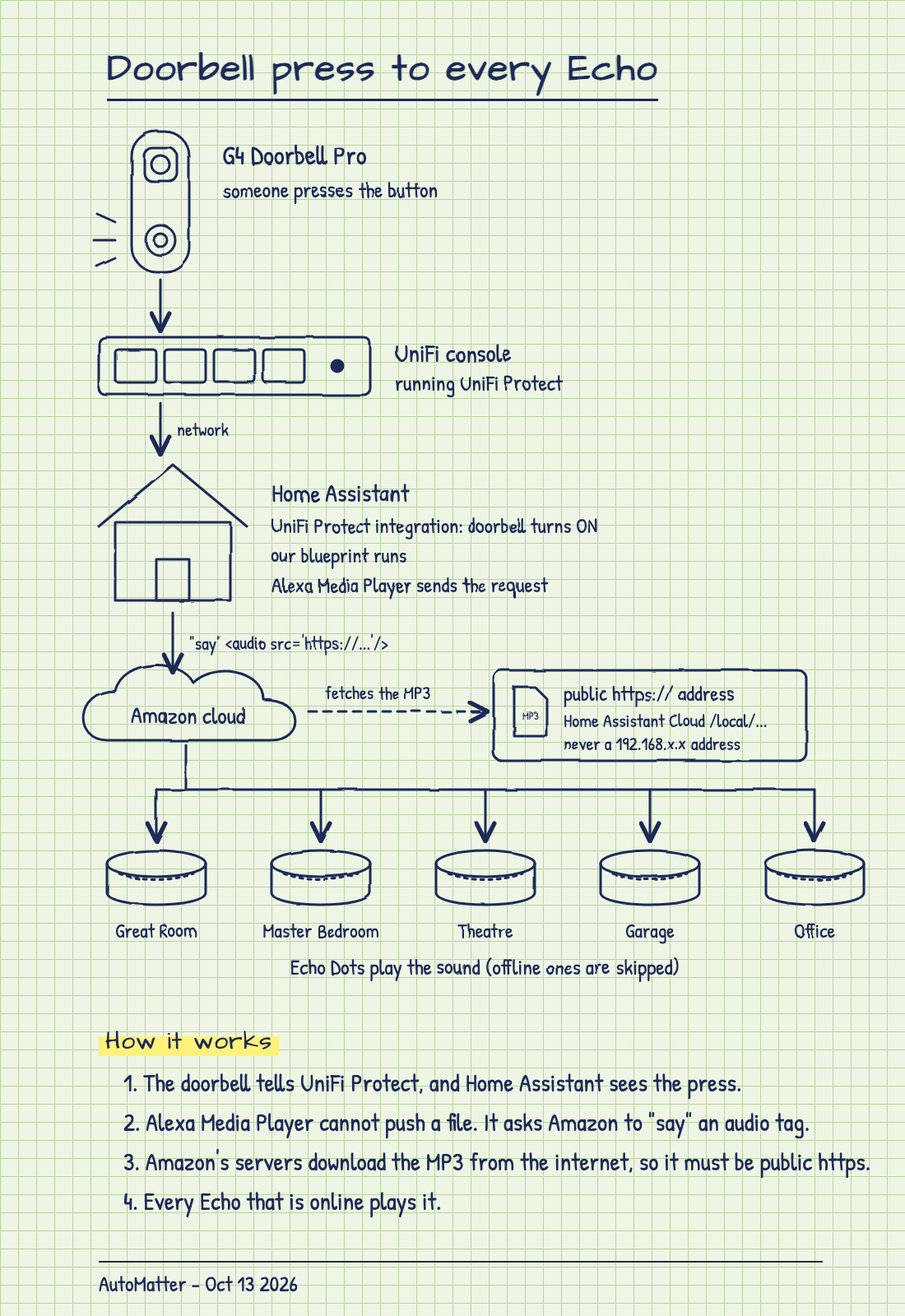
The doorbell tells UniFi Protect it was pressed, and Home Assistant sees the press through its UniFi Protect integration. The blueprint then calls Alexa Media Player. Alexa Media Player cannot send a file to an Echo. Instead it asks Amazon to “say” a short piece of markup, an audio tag that points at your MP3:
<audio src='https://<your Home Assistant external URL>/local/doorbell/jetsons-doorbell.mp3'/>Amazon’s servers then download that file and every Echo plays it. That is why the file has to be public and in Amazon’s format.
Step 1: Get the sound
Search for “Jetsons doorbell sound” (or whatever sound you want) and download a clip you are allowed to use. We do not host or link the Jetsons clip; it belongs to its owners. The same goes for any cartoon, movie or TV sound in the examples below. You can also record your own, or use a sound effect with a licence that allows it.
Keep it short. A doorbell sound of two to five seconds is plenty, and Amazon’s limit is 240 seconds anyway.
Step 2: Convert it to Amazon’s format
Most clips you download are not in Amazon’s format, even when they are already MP3 files. We convert every file with ffmpeg, a free command-line tool (on a Mac with Homebrew: brew install ffmpeg). This command takes any audio file and writes a mono MP3 at 24000 Hz and 48 kbps:
ffmpeg -i jetsons-original.wav -ac 1 -ar 24000 -b:a 48k -codec:a libmp3lame jetsons-doorbell.mp3Check the result. You should see sample_rate=24000 and bit_rate=48000:
ffprobe -v error -show_entries stream=sample_rate,bit_rate jetsons-doorbell.mp3We ran both commands on ffmpeg 9.0.2 and checked the output. We have not tested a point-and-click converter for this, so we are only giving you the route we verified.
Step 3: A public https:// address, in plain terms
When you press the doorbell, it is not your Echo that downloads the sound. Amazon’s servers do, from the internet. So the file must be reachable from outside your house, over a secure address that starts with https://. An address like http://192.168.1.50:8123 only exists inside your home network, so it will never work, no matter what else you get right.
A normal VPN or plain Tailscale does not work either. They let you reach your house from outside, but Amazon’s servers are not on your VPN, so they still cannot fetch the file.
The easy way: Home Assistant Cloud
If you subscribe to Home Assistant Cloud (by Nabu Casa), go to Settings, Home Assistant Cloud, and turn on Remote access. The page shows your remote address. Files you put in Home Assistant’s /config/www/ folder are then served at:
https://<your Home Assistant external URL>/local/<file name>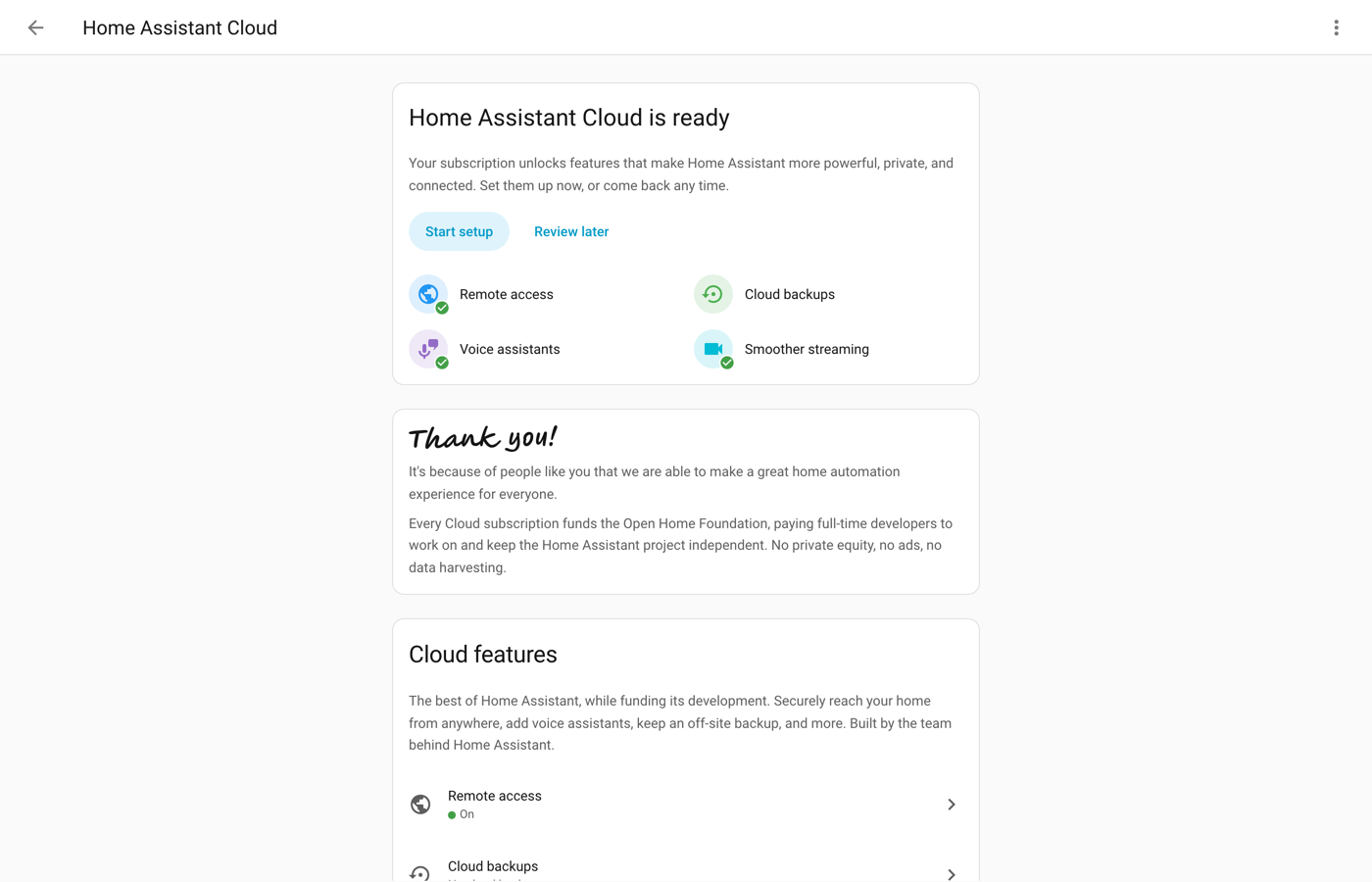
You can also do this with your own domain or DuckDNS plus a Let’s Encrypt certificate, with Tailscale Funnel, or with a Cloudflare Tunnel. Each of those creates a real public https:// address. We will cover them in future tutorials.
Step 4: Put the file in /config/www and test it from your phone
- Copy the MP3 into a folder under
/config/www/on Home Assistant, for example/config/www/doorbell/jetsons-doorbell.mp3. The Samba share, SSH, or the File editor add-on all work. - If you had to create the
wwwfolder yourself, restart Home Assistant once. Home Assistant’s documentation says the folder is only picked up after a restart. - On your phone, turn Wi-Fi off so you are on cellular data, then open
https://<your Home Assistant external URL>/local/doorbell/jetsons-doorbell.mp3in the browser. - If the sound plays, Amazon can reach it too. If it does not play on cellular, the Echoes will not play it either. Fix this before going further.
Anything in /config/www/ is public. Home Assistant does not ask for a password on /local/ addresses; anyone who knows the address can download the file. Put sound files there and nothing private.
Step 5: Install HACS and Alexa Media Player
- Install HACS by following the official instructions at hacs.xyz.
- In HACS, search for Alexa Media Player, download it, and restart Home Assistant.
- Go to Settings, Devices & services, Add integration, pick Alexa Media Player, and sign in to the Amazon account your Echoes belong to.
- Then reload it. On the integration’s page, open the three-dot menu on the entry and choose Reload. On our install the first sign-in showed “loaded” but created no entities at all until we reloaded it; after the reload there were 49.
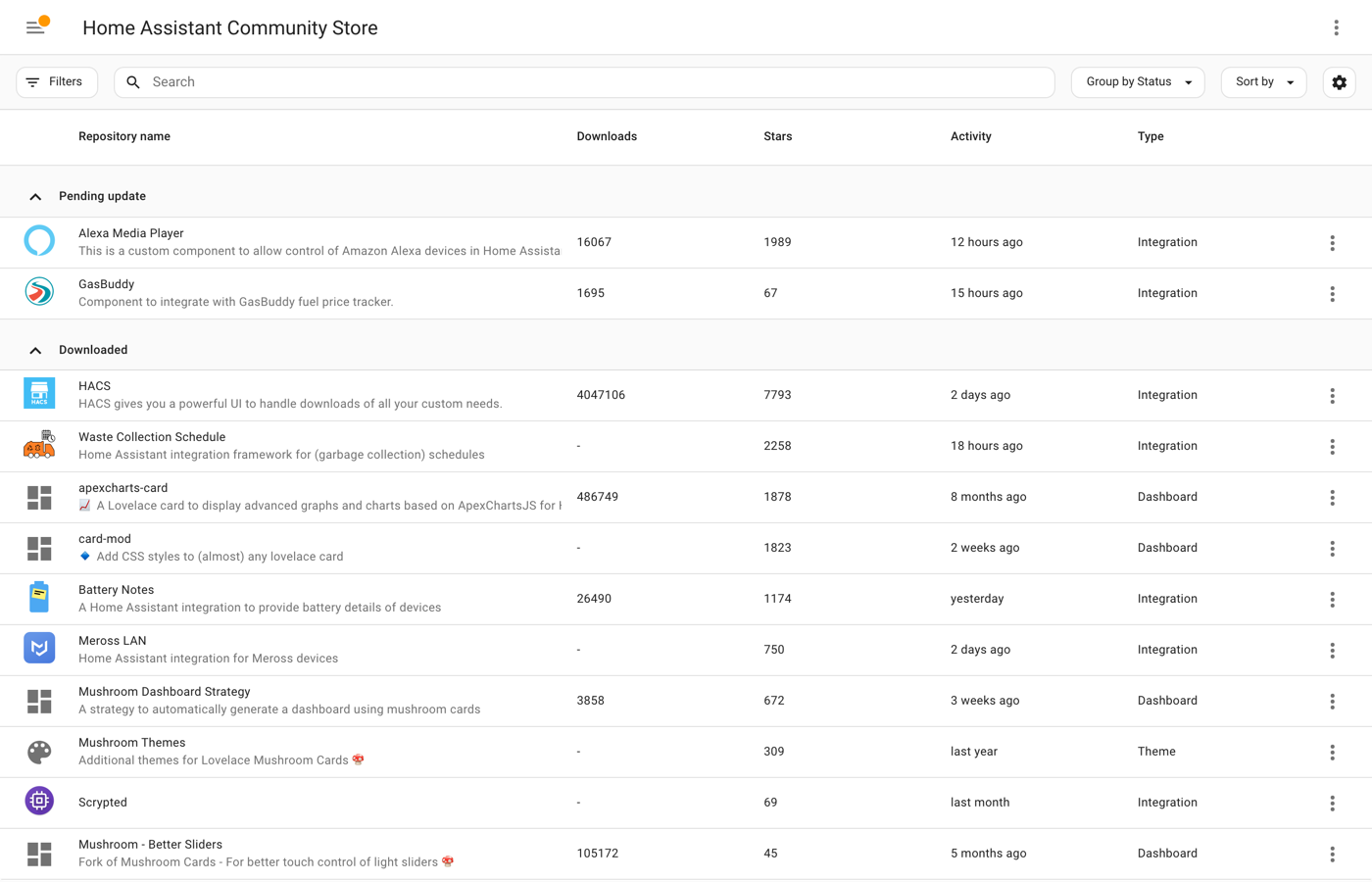
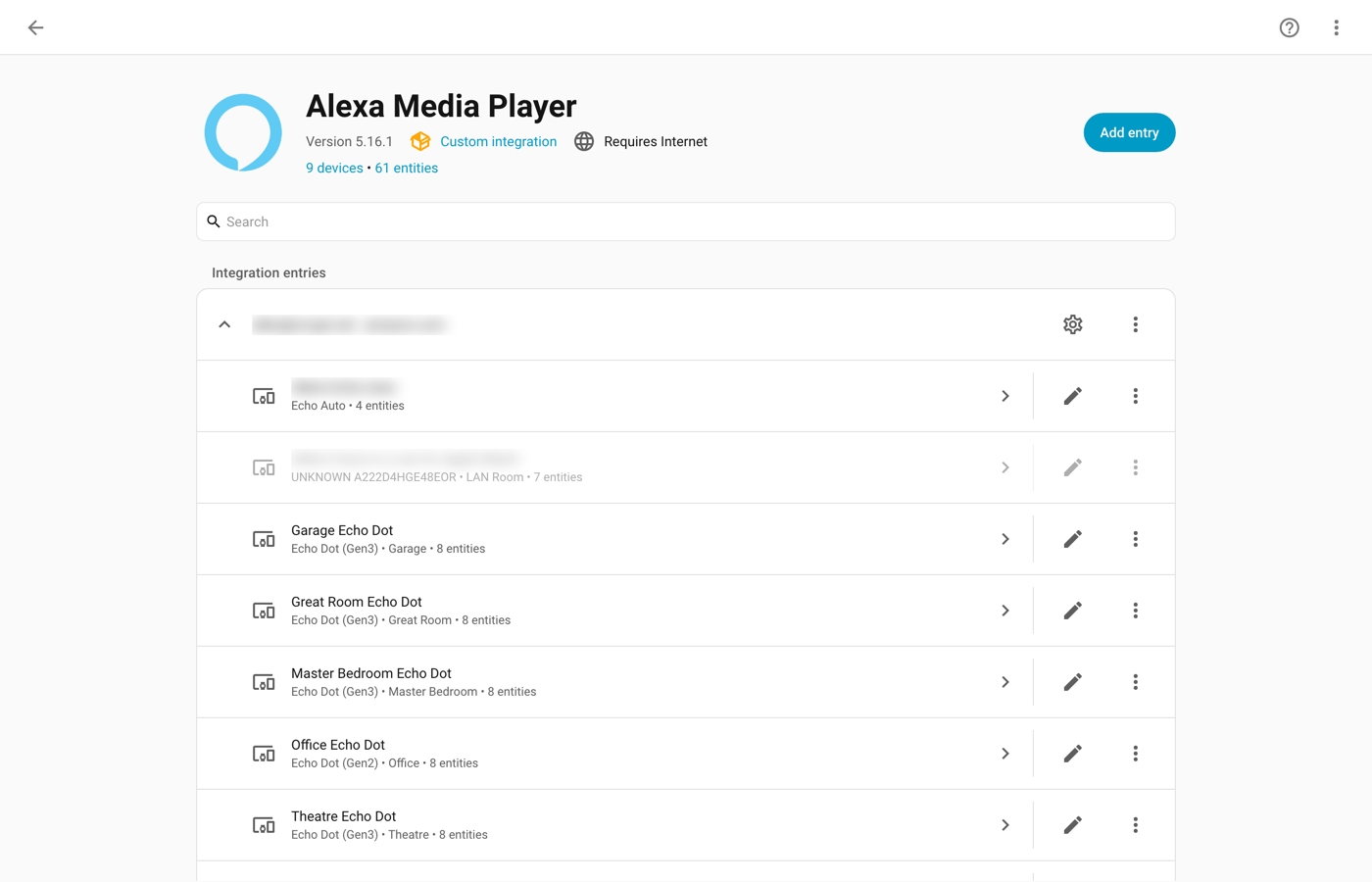
Each Echo becomes a media player entity, such as media_player.great_room_echo_dot. You may also see devices that are not speakers in the house, like an Echo Auto in the car or a “This Device” entry. Leave those out when you pick speakers in the blueprint.
A note for anyone who only wants Amazon’s own built-in chime: Home Assistant has a built-in Alexa Devices integration (since 2025.6) with an alexa_devices.send_sound action that plays Amazon’s stock sounds, including doorbell chimes, with no HACS. Its documentation also describes the same audio tag on its notify entities, but we have not tested that, so this tutorial and the blueprint use Alexa Media Player, which is what runs at our house.
Step 6: Find your doorbell’s “pressed” entity
With the UniFi Protect integration set up, open Settings, Devices & services, UniFi Protect, and pick your doorbell.
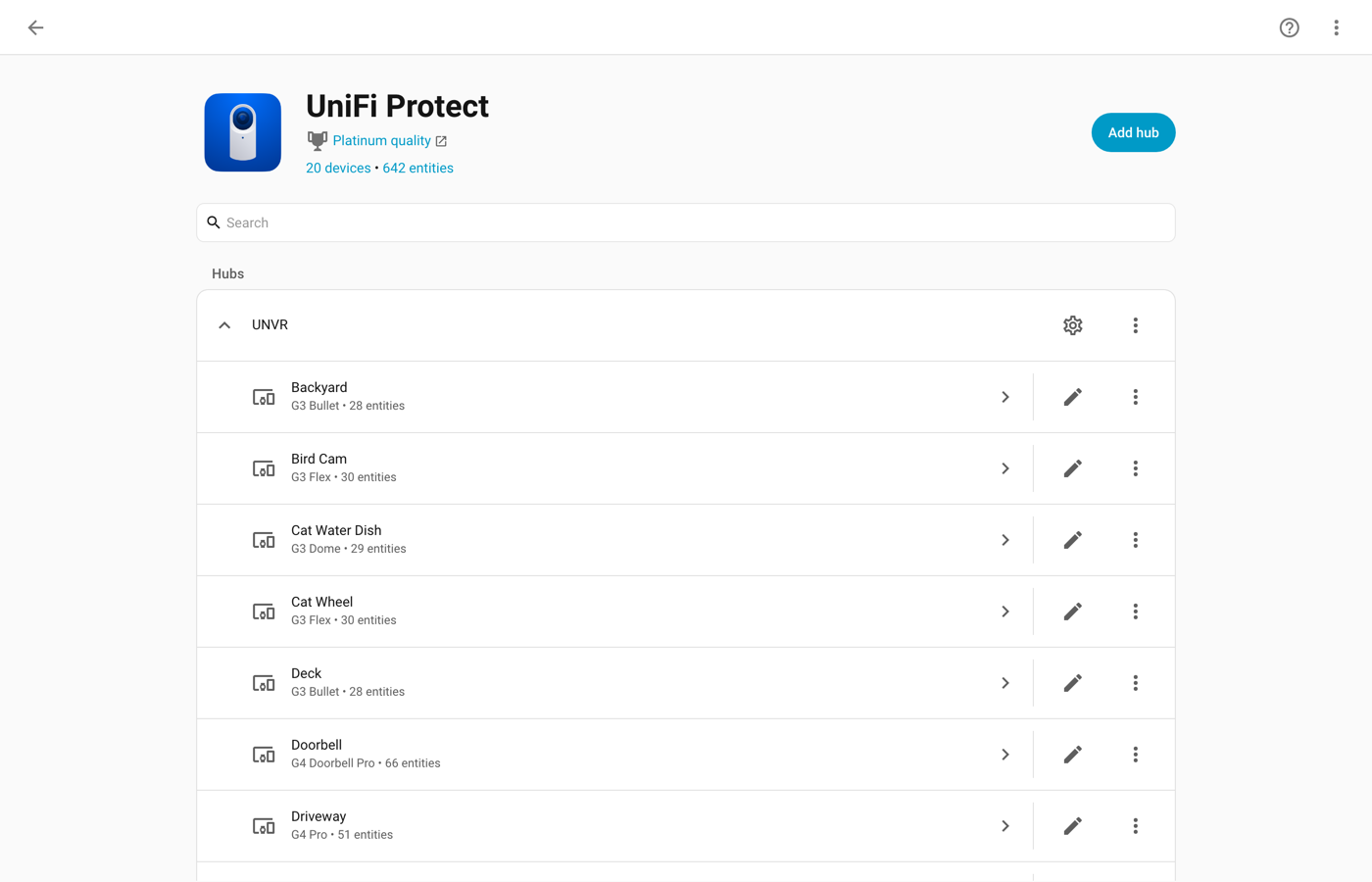
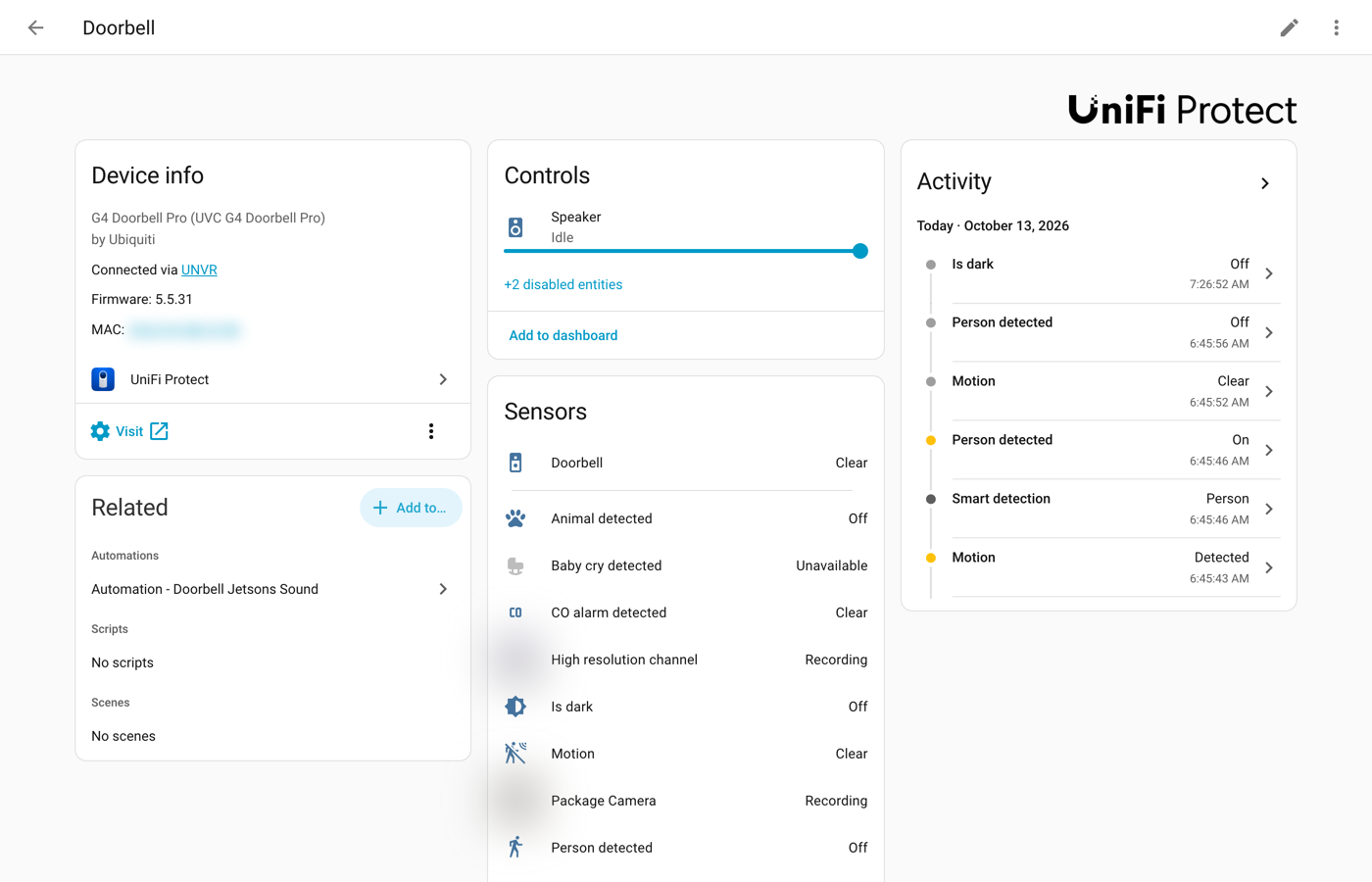
The G4 Doorbell Pro gives you two entities for the button, and the blueprint accepts either one:
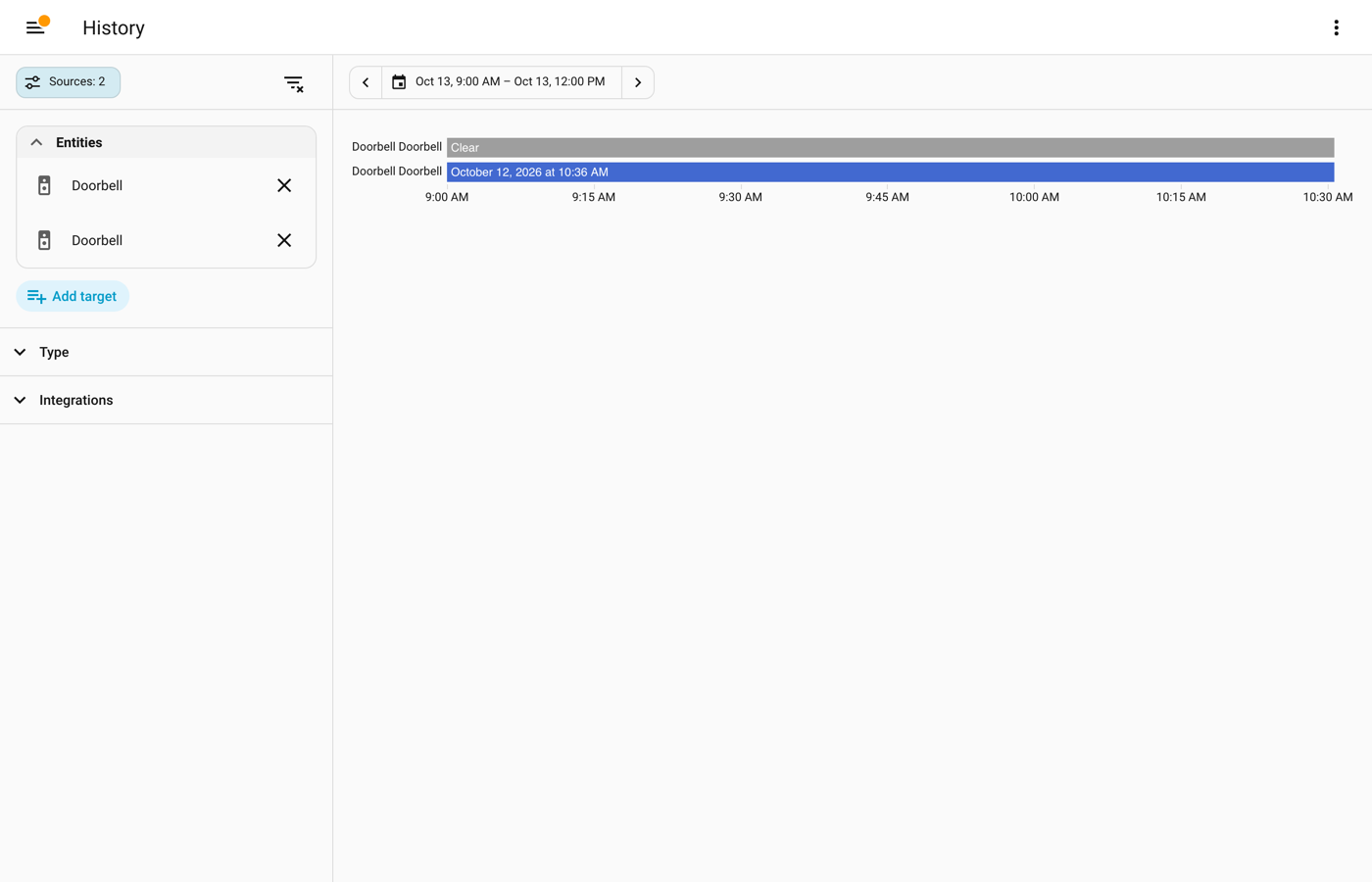
binary_sensor.doorbell_doorbell, which turns on for a moment when the button is pressed. Our working automation uses this one.event.doorbell_doorbell, an event entity whose state becomes the time of the last ring (event typering). UniFi Protect’s documentation notes that the doorbell ring event needs the integration’s full access mode, not API-key-only mode.
Step 7: Import the blueprint and create the automation
- Click Import this blueprint (the button just above), or go to Settings, Automations & scenes, Blueprints, Import blueprint, and paste
https://automatter.ca/wp-content/uploads/blueprints/echo_doorbell_chime.yaml. - Open the blueprint and choose Create automation.
- Doorbell button: pick the entity from step 6.
- Echo speakers: pick every Echo that should play. Only Alexa Media Player speakers are listed. Pick offline ones too if you like; they are skipped while they are offline.
- Main sound address: paste the address you tested on your phone, for example
https://<your Home Assistant external URL>/local/doorbell/jetsons-doorbell.mp3. - Cooldown: 10 seconds is a good start. After the sound plays, presses are ignored for that long, so a visitor who presses five times does not get five chimes in every room.
- Save.
The blueprint runs in single mode with that cooldown at the end. We chose it over the other modes on purpose: queued mode would replay the sound once for every press, and restart mode would ask Amazon for the sound again halfway through playing it.
Step 8: Test it
- Press the doorbell. Every chosen Echo that is online should play the sound within a second or two.
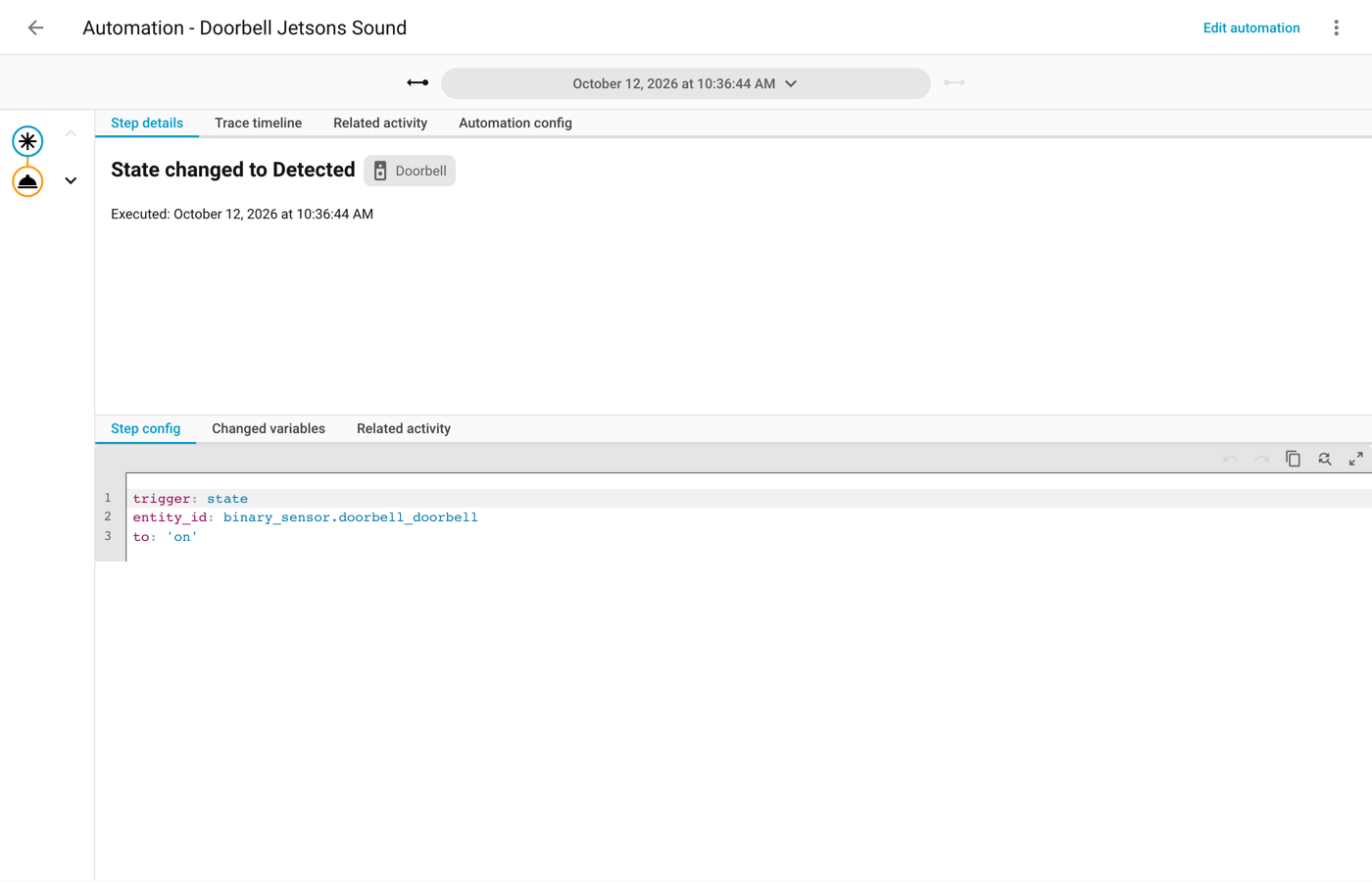
- No sound? Open the automation, then Traces in the top right. If the trace shows the doorbell trigger and the notify step, Home Assistant did its part; the problem is the file or the address (go back to the phone test in step 4).
- If there is no trace at all, the doorbell entity is wrong or the doorbell is not reaching Home Assistant.
- You can also test without the doorbell: in the automation’s three-dot menu, Run actions plays the sound straight away.
A sound library, picked from a dropdown
When we installed smart homes for customers, changeable doorbell sounds were a feature a lot of them loved. The blueprint can do it without anyone editing YAML. Keep a folder of sounds, five or twenty, and pick one from a dropdown on your dashboard: a scream for Halloween, Christmas chimes in December, something fun for a party, or a ring announcer’s “It’s time!” for fight night. Pick it for the evening, then set it back.
As with the Jetsons clip, find or make your own sounds; we do not host or link them. Every one of them has to follow the same rules: MP3, 48 kbps, 16000, 22050 or 24000 Hz, on a public https:// address.
1. Convert the whole folder at once
Put the original clips in a folder called originals, then run this from the folder above it (Mac or Linux). It converts every file and names each MP3 after the original, in lower case with dashes instead of spaces, so Fight Night.wav becomes fight-night.mp3:
for f in originals/*; do
  n=$(basename "${f%.*}" | tr ' A-Z' '-a-z')
  ffmpeg -i "$f" -ac 1 -ar 24000 -b:a 48k -codec:a libmp3lame "$n.mp3"
done
Copy the MP3 files into /config/www/doorbell/ and test one of them from your phone on cellular, as in step 4.
2. Make the dropdown
- Go to Settings, Devices & services, Helpers, Create helper, Dropdown.
- Name it, for example “Doorbell sound”.
- Add one option per sound, using the file names:
jetsons,scream,christmas-chimes,fight-night. The.mp3on the end is optional. Add an option calledDefaultif you want a choice that plays the main sound.
3. Tell the blueprint about it
Open your doorbell automation and expand Sound library and dropdown:
- Sound folder address:
https://<your Home Assistant external URL>/local/doorbell/ - Sound dropdown: the helper you just made.
An option that is a plain file name is looked up in the sound folder. An option can also be a full https:// address if a sound lives somewhere else. If the dropdown is unavailable, the main sound plays.
4. Put the dropdown on your dashboard
Edit your dashboard, add a card (an Entities card or a Tile card both work), and pick the Doorbell sound helper. Now anyone in the house can change the doorbell sound from a phone.
Seasonal sounds that switch themselves
Each automation has four optional seasons. A season is a start date, an end date and a sound. Between those dates, that sound plays, whatever the dropdown says; the day after the season ends, the doorbell goes back to the dropdown or the main sound. Nobody has to remember to switch it.
- Expand Season 1. Enter the sound (a file name from your folder, such as
christmas-chimes.mp3, or a full https:// address) and pick the start month and day and the end month and day. The defaults are December 1 to December 26. - Season 2 defaults to October 24 to October 31, for Halloween.
- Both the start and the end day are included. A season can cross New Year, for example December 27 to January 2.
- If two seasons overlap, the lower-numbered one wins.
- A season with no sound is off.
To check a season without waiting for it, expand Testing and enter a date in Pretend today is, for example 12-05. Press the doorbell, listen, then empty the field again.
One thing to know: a season overrides the dropdown. If you want the fight night sound on a night that falls inside a season, empty that season’s sound for the evening.
Optional: lower the music when the doorbell rings
If you also run our Announce, then put the music back blueprint, turn on Also announce on music speakers in the doorbell automation. The doorbell then fires the same event, and the announce blueprint says your message (“Someone is at the front door.” by default) on its own speakers, such as Music Assistant or Sonos, and puts the music back afterwards.
To be clear about what this does and does not do: it works on the speakers set up in the announce blueprint. It does not lower music playing on the Echoes themselves.
Troubleshooting
- The file plays in a browser but not on the Echoes. Almost always the format. Convert it again with the command in step 2 and check it with ffprobe.
- Nothing plays and the log says the address must start with https://. The blueprint refuses
http://and local addresses on purpose, because Amazon would ignore them silently. - One Echo stays quiet. Check its entity. If it shows unavailable, the Echo is unplugged or off Wi-Fi; the blueprint skips it and the rest still play.
- It stopped working after you changed your Amazon password. Alexa Media Player loses its sign-in and does not always ask again. In our case the fix was to delete the Alexa Media Player entry under Devices & services (not the HACS download), add it again, and reload it.
- No trace when you press the doorbell. The wrong entity is picked, or the doorbell is not reaching Home Assistant. Watch the entity in Developer tools while you press the button.
- The sound plays twice. Two automations are listening to the same doorbell, for example an old one and this one. Turn one off.
What it was tested on
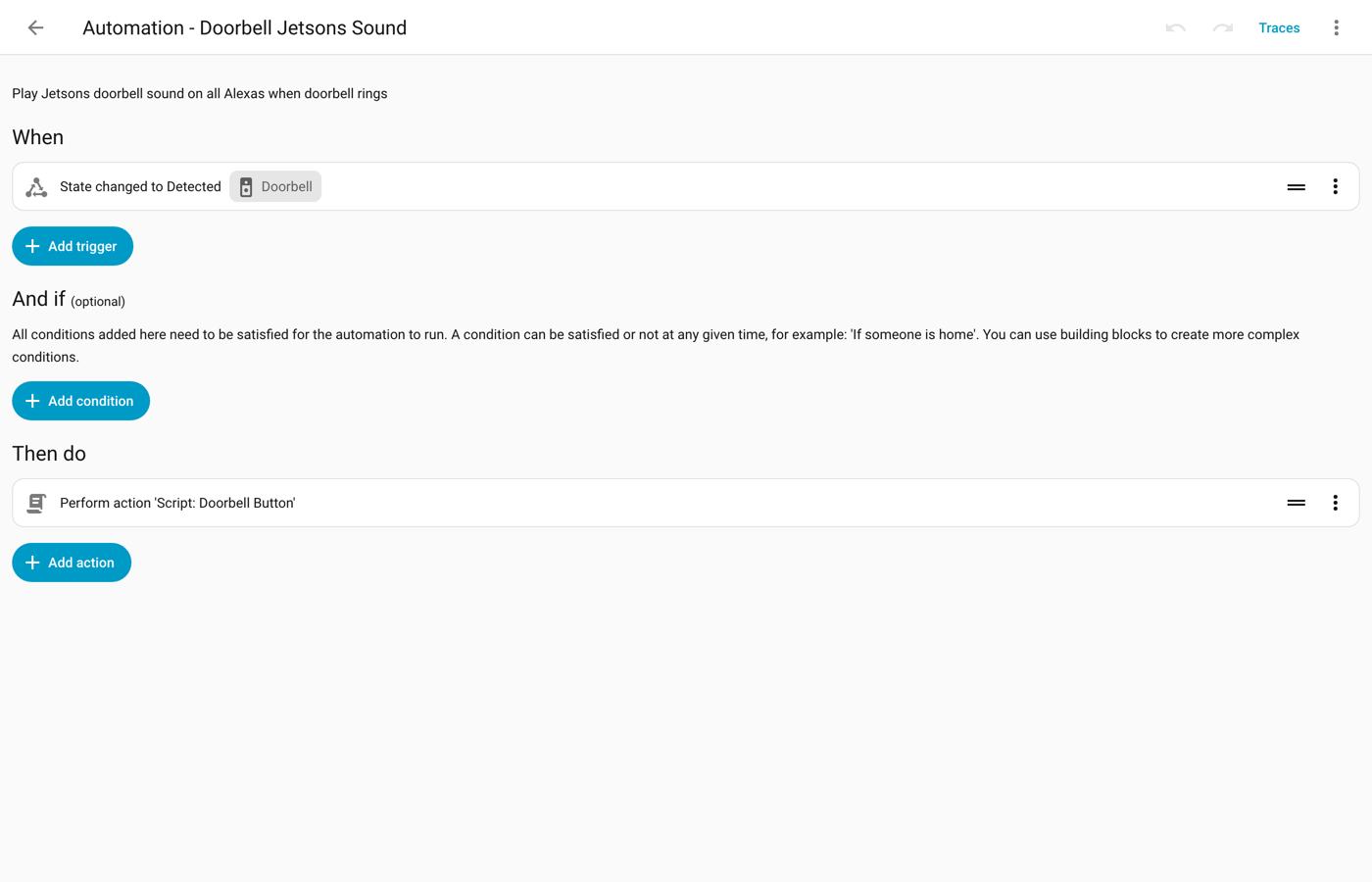
The setup this is built from runs every day at our house: a UniFi Protect G4 Doorbell Pro, Home Assistant 2026.9.4, Alexa Media Player 5.16.1, and Echo Dots in the great room, master bedroom, theatre, garage and office (the garage and office ones are offline at the moment, which is exactly the case the skip-offline check is for), with the sound served through Home Assistant Cloud. That working version is a plain automation and script, shown below. The screenshots in this post come from that install.
The blueprint itself has not yet run on our real doorbell or Echoes. We tested it on a separate test install of Home Assistant 2026.10.1 with simulated doorbells and Echoes and a stand-in for Alexa Media Player that records exactly what would be sent to Amazon. 38 checks passed, including:
- one press, five quick presses, and a press after the cooldown;
- a doorbell coming back online after a restart (not counted as a press), for both binary sensor and event entity doorbells;
- offline Echoes skipped, and every Echo offline (no error);
- an
http://address refused with a log warning; - the dropdown with file names, full addresses, Default, and an unavailable helper;
- seasons on their first and last days, overlapping seasons, and a season that crosses New Year (using the Pretend today is setting).
The message the blueprint sends to Alexa Media Player is the same one our working script has sent since 2023. Amazon’s side, and real UniFi Protect, Ring, Reolink or DoorBird hardware, were not part of the blueprint test. We will update this section once it has run on our own doorbell.
Using a different doorbell
The blueprint only needs one thing from the doorbell: an entity that changes when the button is pressed. It accepts a binary sensor that turns on, or an event entity that gets a new time stamp.
To find yours, open Settings, Devices & services, your doorbell’s integration, and the doorbell device. Look for an entity with a name like Doorbell, Ding, Ring or Visitor. To be sure, open Developer tools, States, type the doorbell’s name in the filter, and press the real button: the entity that changes is the one to use. Do not pick a motion or person sensor, or every passer-by will ring the house.
What Home Assistant’s own documentation says for a few common brands:
- UniFi Protect: both a doorbell binary sensor and a doorbell event entity (the ring event needs full access mode).
- Ring: an event entity for doorbell rings. The older binary sensor is being replaced by the event entity, so use the event.
- Reolink: a binary sensor called Visitor for doorbell presses.
- DoorBird: an event entity for each doorbell event you set up with an HTTP(S) call in the DoorBird app’s schedule.
If your doorbell only fires a Home Assistant event (not an entity), make a template binary sensor or an input boolean that turns on from that event, and point the blueprint at it. We have not tested that route.
The blueprint
Here is the whole file, so you can read it before you import it. The same file is at https://automatter.ca/wp-content/uploads/blueprints/echo_doorbell_chime.yaml.
# Built by AutoMatter | automatter.ca
# Write-up, updates and more Home Assistant blueprints: https://automatter.ca
blueprint:
name: Doorbell press plays a sound on every Amazon Echo
author: AutoMatter (automatter.ca)
source_url: https://automatter.ca/wp-content/uploads/blueprints/echo_doorbell_chime.yaml
description: >
When someone presses your doorbell, every Amazon Echo you pick plays a sound file of your
choice, for example a cartoon doorbell. The Echoes become the chime.
**You need:** a doorbell Home Assistant can see being pressed (a binary sensor that turns on,
or an event entity), the Alexa Media Player integration (from HACS) signed in to the Amazon
account your Echoes are on, and the sound as an MP3 in Amazon's format (48 kbps, 16000,
22050 or 24000 Hz, 240 seconds or less) at a public https:// address. Amazon's servers fetch
the file from the internet, so a 192.168.x.x address will never play.
**What it handles:**
- Echoes that are unplugged or offline are skipped; the rest still play.
- Pressing the button five times in a row plays the sound once, then waits out a short
cooldown before it can play again.
- The doorbell coming back online after a restart does not count as a press.
- A sound address that does not start with https:// is refused, with a warning in the log
instead of silence you cannot explain.
- Optional sound library: a Dropdown helper picks the sound from your dashboard (one file
per option), no YAML edits.
- Optional seasons: up to four date ranges with their own sound (Christmas, Halloween...),
which switch on and off by themselves, including ranges that cross New Year.
- Optional: also fire the AutoMatter announce event, so music speakers set up with our
"Announce, then restore what was playing" blueprint say a message and put the music back.
Tested on Home Assistant 2026.10.1 with simulated doorbells and Echoes. Full write-up:
[Doorbell press plays a sound on every Amazon Echo](https://automatter.ca/doorbell-sound-on-every-amazon-echo/)
domain: automation
homeassistant:
min_version: "2024.10.0"
input:
doorbell_section:
name: Doorbell
icon: mdi:doorbell
input:
doorbell:
name: Doorbell button
description: >
The entity that changes when the button is pressed. A binary sensor that turns on
(for example UniFi Protect "Doorbell", Reolink "Visitor") or an event entity (for
example UniFi Protect, Ring or DoorBird doorbell events). Pick one, not the motion
sensor.
selector:
entity:
filter:
- domain:
- binary_sensor
- event
multiple: false
echo_section:
name: Echo speakers
icon: mdi:speaker-multiple
input:
echoes:
name: Echo speakers
description: >
The Echoes that should play the sound. Only Alexa Media Player speakers are listed.
Leave out anything that is not in the house, like an Echo Auto in the car.
selector:
entity:
filter:
- integration: alexa_media
domain: media_player
multiple: true
sound_url:
name: Main sound address
description: >
The full public https:// address of the MP3, for example
https://<your Home Assistant external URL>/local/mp3/doorbell.mp3 . Open it on a phone
using cellular data (Wi-Fi off) first: if it does not play there, the Echoes will not
play it either.
selector:
text:
type: url
cooldown:
name: Cooldown (seconds)
description: >
After the sound plays, further presses are ignored for this long. Stops an impatient
visitor from making every Echo in the house play the sound five times.
default: 10
selector:
number:
min: 0
max: 120
step: 1
unit_of_measurement: s
mode: box
chooser_section:
name: Sound library and dropdown (optional)
icon: mdi:playlist-music
collapsed: true
input:
sound_folder:
name: Sound folder address
description: >
The public https:// address of the folder that holds your sounds, ending in a slash,
for example https://<your Home Assistant external URL>/local/doorbell/ . Dropdown
options and season sounds that are plain file names are looked up here.
default: ""
selector:
text:
type: url
sound_chooser:
name: Sound dropdown (Dropdown helper)
description: >
Optional. A Dropdown helper whose options are file names in the sound folder (for
example jetsons.mp3, scream.mp3; ".mp3" may be left off) or full https:// addresses.
Whatever it is set to plays, unless a season below is active. An option named
"Default" plays the main sound above. Leave empty to always play the main sound.
default: ""
selector:
entity:
filter:
- domain: input_select
multiple: false
season_1_section:
name: "Season 1 (optional): for example Christmas"
icon: mdi:calendar-star
collapsed: true
input:
season_1_sound:
name: Season 1 sound
description: >
A file name from your sound folder (for example christmas-chimes.mp3) or a full
https:// address. Leave empty to switch this season off.
default: ""
selector:
text: {}
season_1_start_month:
name: Starts (month)
default: "12"
selector:
select:
mode: dropdown
options:
- label: January
value: "1"
- label: February
value: "2"
- label: March
value: "3"
- label: April
value: "4"
- label: May
value: "5"
- label: June
value: "6"
- label: July
value: "7"
- label: August
value: "8"
- label: September
value: "9"
- label: October
value: "10"
- label: November
value: "11"
- label: December
value: "12"
season_1_start_day:
name: Starts (day)
default: 1
selector:
number: {min: 1, max: 31, step: 1, mode: box}
season_1_end_month:
name: Ends (month)
description: The end day is included. A season may cross New Year, for example December 20 to January 2.
default: "12"
selector:
select:
mode: dropdown
options:
- label: January
value: "1"
- label: February
value: "2"
- label: March
value: "3"
- label: April
value: "4"
- label: May
value: "5"
- label: June
value: "6"
- label: July
value: "7"
- label: August
value: "8"
- label: September
value: "9"
- label: October
value: "10"
- label: November
value: "11"
- label: December
value: "12"
season_1_end_day:
name: Ends (day)
default: 26
selector:
number: {min: 1, max: 31, step: 1, mode: box}
season_2_section:
name: "Season 2 (optional): for example Halloween"
icon: mdi:calendar-star
collapsed: true
input:
season_2_sound:
name: Season 2 sound
description: >
A file name from your sound folder (for example christmas-chimes.mp3) or a full
https:// address. Leave empty to switch this season off.
default: ""
selector:
text: {}
season_2_start_month:
name: Starts (month)
default: "10"
selector:
select:
mode: dropdown
options:
- label: January
value: "1"
- label: February
value: "2"
- label: March
value: "3"
- label: April
value: "4"
- label: May
value: "5"
- label: June
value: "6"
- label: July
value: "7"
- label: August
value: "8"
- label: September
value: "9"
- label: October
value: "10"
- label: November
value: "11"
- label: December
value: "12"
season_2_start_day:
name: Starts (day)
default: 24
selector:
number: {min: 1, max: 31, step: 1, mode: box}
season_2_end_month:
name: Ends (month)
description: The end day is included. A season may cross New Year, for example December 20 to January 2.
default: "10"
selector:
select:
mode: dropdown
options:
- label: January
value: "1"
- label: February
value: "2"
- label: March
value: "3"
- label: April
value: "4"
- label: May
value: "5"
- label: June
value: "6"
- label: July
value: "7"
- label: August
value: "8"
- label: September
value: "9"
- label: October
value: "10"
- label: November
value: "11"
- label: December
value: "12"
season_2_end_day:
name: Ends (day)
default: 31
selector:
number: {min: 1, max: 31, step: 1, mode: box}
season_3_section:
name: "Season 3 (optional): another season"
icon: mdi:calendar-star
collapsed: true
input:
season_3_sound:
name: Season 3 sound
description: >
A file name from your sound folder (for example christmas-chimes.mp3) or a full
https:// address. Leave empty to switch this season off.
default: ""
selector:
text: {}
season_3_start_month:
name: Starts (month)
default: "1"
selector:
select:
mode: dropdown
options:
- label: January
value: "1"
- label: February
value: "2"
- label: March
value: "3"
- label: April
value: "4"
- label: May
value: "5"
- label: June
value: "6"
- label: July
value: "7"
- label: August
value: "8"
- label: September
value: "9"
- label: October
value: "10"
- label: November
value: "11"
- label: December
value: "12"
season_3_start_day:
name: Starts (day)
default: 1
selector:
number: {min: 1, max: 31, step: 1, mode: box}
season_3_end_month:
name: Ends (month)
description: The end day is included. A season may cross New Year, for example December 20 to January 2.
default: "1"
selector:
select:
mode: dropdown
options:
- label: January
value: "1"
- label: February
value: "2"
- label: March
value: "3"
- label: April
value: "4"
- label: May
value: "5"
- label: June
value: "6"
- label: July
value: "7"
- label: August
value: "8"
- label: September
value: "9"
- label: October
value: "10"
- label: November
value: "11"
- label: December
value: "12"
season_3_end_day:
name: Ends (day)
default: 1
selector:
number: {min: 1, max: 31, step: 1, mode: box}
season_4_section:
name: "Season 4 (optional): another season"
icon: mdi:calendar-star
collapsed: true
input:
season_4_sound:
name: Season 4 sound
description: >
A file name from your sound folder (for example christmas-chimes.mp3) or a full
https:// address. Leave empty to switch this season off.
default: ""
selector:
text: {}
season_4_start_month:
name: Starts (month)
default: "1"
selector:
select:
mode: dropdown
options:
- label: January
value: "1"
- label: February
value: "2"
- label: March
value: "3"
- label: April
value: "4"
- label: May
value: "5"
- label: June
value: "6"
- label: July
value: "7"
- label: August
value: "8"
- label: September
value: "9"
- label: October
value: "10"
- label: November
value: "11"
- label: December
value: "12"
season_4_start_day:
name: Starts (day)
default: 1
selector:
number: {min: 1, max: 31, step: 1, mode: box}
season_4_end_month:
name: Ends (month)
description: The end day is included. A season may cross New Year, for example December 20 to January 2.
default: "1"
selector:
select:
mode: dropdown
options:
- label: January
value: "1"
- label: February
value: "2"
- label: March
value: "3"
- label: April
value: "4"
- label: May
value: "5"
- label: June
value: "6"
- label: July
value: "7"
- label: August
value: "8"
- label: September
value: "9"
- label: October
value: "10"
- label: November
value: "11"
- label: December
value: "12"
season_4_end_day:
name: Ends (day)
default: 1
selector:
number: {min: 1, max: 31, step: 1, mode: box}
announce_section:
name: Music speakers (optional)
icon: mdi:music
collapsed: true
input:
announce_too:
name: Also announce on music speakers
description: >
Fire the event used by the AutoMatter "Announce, then restore what was playing"
blueprint. That blueprint (set up separately) says the message on its own speakers,
for example Music Assistant or Sonos, then puts the music back. It does not touch the
Echoes.
default: false
selector:
boolean: {}
announce_event:
name: Announce event name
description: Leave as is unless you renamed the event in the announce blueprint.
default: automatter_announce
selector:
text: {}
announce_message:
name: Announcement
default: Someone is at the front door.
selector:
text: {}
advanced_section:
name: Testing
icon: mdi:test-tube
collapsed: true
input:
pretend_date:
name: Pretend today is (for testing seasons)
description: >
Leave empty. To check a season without waiting for it, enter a date as MM-DD (for
example 12-05), press the doorbell, then empty this again.
default: ""
selector:
text: {}
# single + a cooldown delay at the end: extra presses while the sound plays (or during the
# cooldown) are dropped silently. "queued" would replay the sound once per press, and "restart"
# would ask Amazon for the sound again halfway through, so neither suits a doorbell.
mode: single
max_exceeded: silent
variables:
doorbell: !input doorbell
echoes: !input echoes
sound_url: !input sound_url
cooldown: !input cooldown
announce_too: !input announce_too
sound_folder: !input sound_folder
sound_chooser: !input sound_chooser
pretend_date: !input pretend_date
seasons:
- sound: !input season_1_sound
start: [!input season_1_start_month, !input season_1_start_day]
end: [!input season_1_end_month, !input season_1_end_day]
- sound: !input season_2_sound
start: [!input season_2_start_month, !input season_2_start_day]
end: [!input season_2_end_month, !input season_2_end_day]
- sound: !input season_3_sound
start: [!input season_3_start_month, !input season_3_start_day]
end: [!input season_3_end_month, !input season_3_end_day]
- sound: !input season_4_sound
start: [!input season_4_start_month, !input season_4_start_day]
end: [!input season_4_end_month, !input season_4_end_day]
triggers:
- trigger: state
entity_id: !input doorbell
not_from:
- unavailable
not_to:
- unavailable
- unknown
conditions:
# A state trigger without "to" also fires on attribute-only changes. Only a real change counts:
# a binary sensor going off -> on, or an event entity getting a new timestamp.
- condition: template
value_template: >
{% set f = trigger.from_state.state %}
{% set t = trigger.to_state.state %}
{% if doorbell.startswith('binary_sensor.') %}
{{ f == 'off' and t == 'on' }}
{% else %}
{{ f != t }}
{% endif %}
actions:
- variables:
targets: "{{ echoes | select('has_value') | list }}"
# Today as month*100 + day (Dec 5 = 1205), or the testing date if one is set.
today_md: >
{% set p = pretend_date | string | trim %}
{% if p | regex_match('^\\d{1,2}-\\d{1,2}$') %}
{{ (p.split('-')[0] | int) * 100 + (p.split('-')[1] | int) }}
{% else %}
{{ now().month * 100 + now().day }}
{% endif %}
# First season whose dates include today and that has a sound. Ranges may cross New Year.
season_sound: >
{% set ns = namespace(hit='') %}
{% for se in seasons %}
{% set snd = se.sound | default('', true) | string | trim %}
{% set a = (se.start[0] | int) * 100 + (se.start[1] | int) %}
{% set b = (se.end[0] | int) * 100 + (se.end[1] | int) %}
{% set t = today_md | int %}
{% set inside = (a <= t <= b) if a <= b else (t >= a or t <= b) %}
{% if ns.hit == '' and snd != '' and inside %}{% set ns.hit = snd %}{% endif %}
{% endfor %}
{{ ns.hit }}
chooser_pick: >
{% if sound_chooser and states(sound_chooser) not in ['unknown', 'unavailable', ''] %}
{{ states(sound_chooser) | trim }}
{% else %}{% endif %}
picked: >
{% if season_sound | trim != '' %}{{ season_sound | trim }}
{% elif chooser_pick | trim != '' and chooser_pick | trim | lower != 'default' %}{{ chooser_pick | trim }}
{% else %}{% endif %}
# Turn a plain file name into an address in the sound folder; full addresses pass through.
play_url: >
{% set x = picked | trim %}
{% if x == '' %}{{ sound_url | trim }}
{% elif x | lower | regex_match('^https?://') %}{{ x }}
{% elif sound_folder | trim != '' %}
{%- set f = sound_folder | trim -%}
{{ f ~ ('' if f.endswith('/') else '/') ~ x ~ ('' if x | lower | regex_search('\\.mp3$') else '.mp3') }}
{% else %}{{ sound_url | trim }}{% endif %}
url_ok: "{{ play_url | string | lower | regex_match('^https://') }}"
- if:
- condition: template
value_template: "{{ not url_ok }}"
then:
- action: system_log.write
data:
level: warning
logger: blueprints.automatter.echo_doorbell_chime
message: >
Doorbell sound not played: the sound address must start with https:// so Amazon's
servers can fetch it. Got: {{ play_url }}
- stop: Sound address is not https
- if:
- condition: template
value_template: "{{ targets | count > 0 }}"
then:
- action: notify.alexa_media
continue_on_error: true
data:
message: "<audio src='{{ play_url }}'/>"
target: "{{ targets }}"
data:
type: tts
else:
- action: system_log.write
data:
level: warning
logger: blueprints.automatter.echo_doorbell_chime
message: "Doorbell pressed but every chosen Echo is unavailable: {{ echoes | join(', ') }}"
- if:
- condition: template
value_template: "{{ announce_too }}"
then:
- event: !input announce_event
event_data:
message: !input announce_message
- delay:
seconds: "{{ cooldown | int(10) }}"